How to make a custom Minecraft skin
A Minecraft skin is a 64×64 pixel PNG image that wraps around the player model. You can design one in your browser: paint on the template, check it on a 3D model, then upload it in the Minecraft Launcher (Java) or import it as a skin pack (Bedrock).
Step by step
- Open the Skin Maker and pick a starting point: a blank skin, a colour-coded template, a starter character, a PNG you already have, a Java player’s skin by username, or one of the default skins.
- Choose the arm style: classic (4 pixels wide) or slim (3 pixels wide).
- Paint on the 64×64 template or switch to 3D and paint right on the model, hiding body parts to reach the sides underneath. Use mirroring to paint both arms or legs at once, and lock parts you have finished.
- Add depth with the outer layer: hats, hair, jackets, sleeves and trouser legs sit slightly above the body.
- Export a
.pngfor Java (add a legacy 64×32 copy for 1.7.10 and older) or a skin pack.mcpackfor Bedrock. - Upload it: in the Minecraft Launcher (Java) or by opening the .mcpack and choosing it in the Dressing Room (Bedrock).
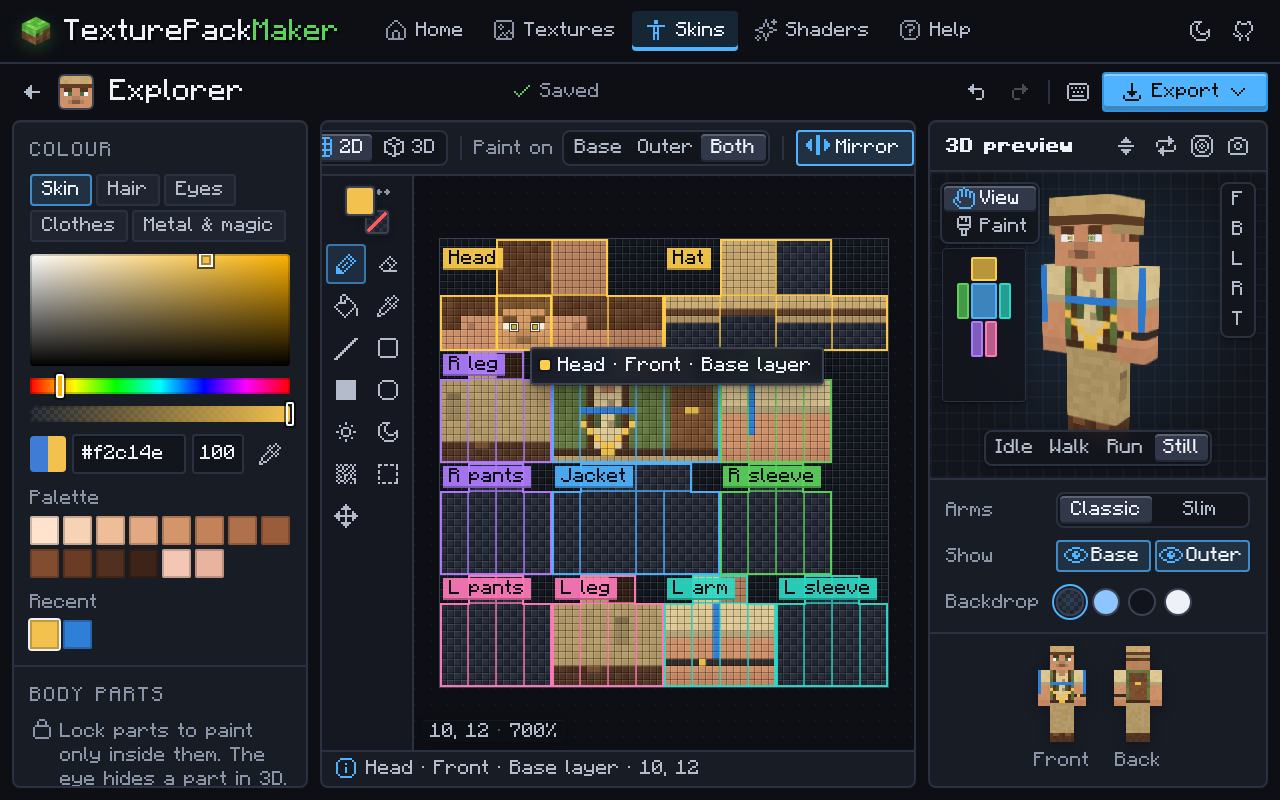
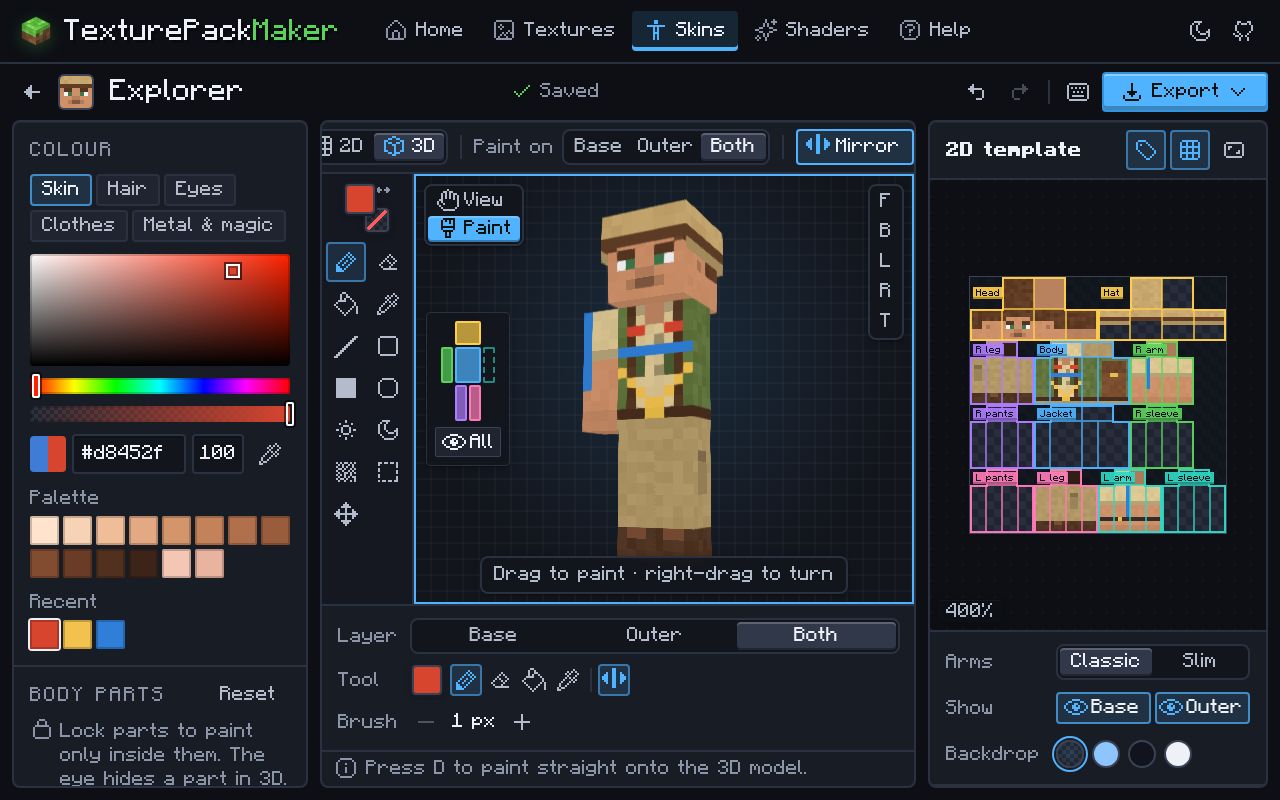
How the skin template works
- The image is 64×64 pixels. Java 1.7.10 and older use the old 64×32 layout, which has no separate left arm and leg; Bedrock also accepts 128×128 HD skins.
- There are two layers. The base layer is the body; the outer layer (hat, jacket, sleeves and trouser legs) floats just above it and can be transparent.
- Classic (Steve) arms are 4 pixels wide and slim (Alex) arms are 3 pixels wide. Upload the skin with the same model you painted.
- Unused parts of the template should stay fully transparent.
Use it on Java
- Open the Minecraft Launcher and go to Minecraft: Java Edition > Skins.
- Click New skin, name it and choose Classic or Slim.
- Click Browse, pick your PNG, then Save & Use.
You can also upload it on your profile at minecraft.net.
Make a custom Bedrock skin pack
A skin pack is an .mcpack holding one or more skins. The Skin Maker builds it for you; inside it has a manifest.json (module type skin_pack), a skins.json listing each skin with the classic (geometry.humanoid.custom) or slim (geometry.humanoid.customSlim) model and "type": "free", the skin PNGs at the top level, and the names in texts/en_US.lang.
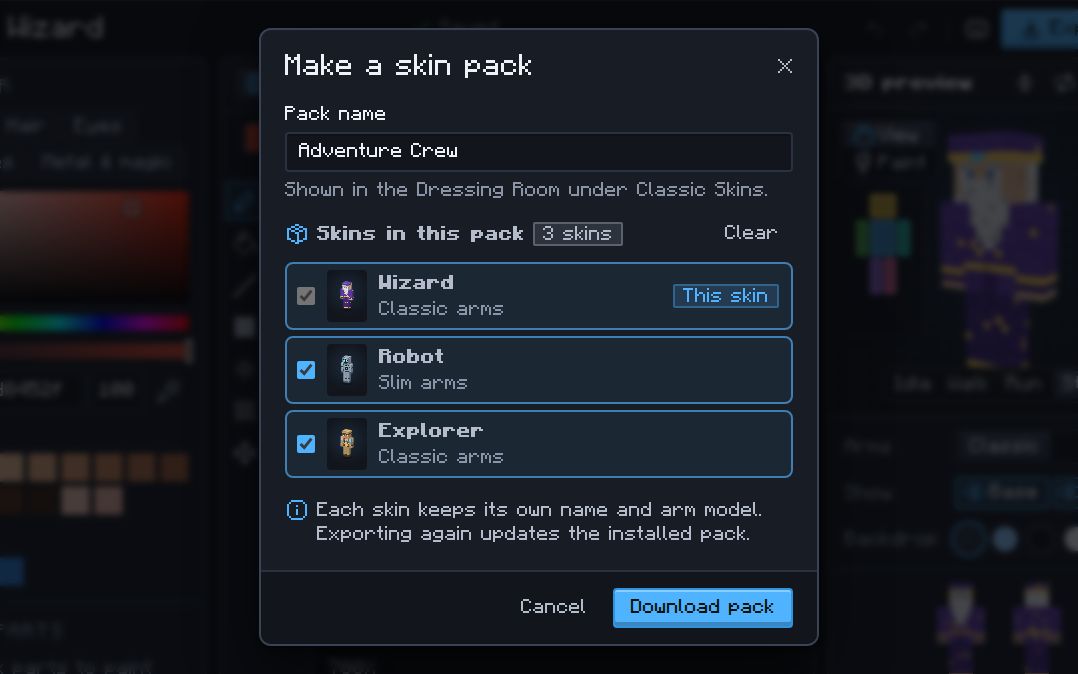
- Paint each skin as its own project. Classic and slim skins can share one pack.
- Choose Export › Bedrock skin pack, name the pack and tick the other skins to include.
- Open the .mcpack (double-click on Windows, Open with Minecraft on Android, Share › Minecraft on iPhone and iPad).
- In Minecraft go to Dressing Room > Classic Skins, find your pack, choose the skin and press Equip.
Questions
What size should a Minecraft skin be?
64×64 pixels, saved as PNG. Use 64×32 only for Java 1.7.10 and older.
Can I start from someone’s skin?
Yes. The Skin Maker can load any Java player’s current skin by username, so you can remix it. Please respect other people’s work.
Can I make a skin on my phone?
Yes. The editor works with touch, including pinch-to-zoom.
Can a skin pack mix classic and slim skins?
Yes. Every skin in a pack has its own model, so a custom skin pack can hold classic (4-pixel arms) and slim (3-pixel arms) skins side by side.
How do I update a skin pack I already imported?
Export it again from the same project and open the new .mcpack. The pack keeps its IDs and gets a higher version number, so Minecraft replaces the old one instead of adding a copy.